Computer Printer Repair

Fix Printer Problems

Showing posts with label fix XP printing Error. Show all posts

How to Print a CD/DVD Label

This Post provide printer support to print CD/DVD Label I try to describe step by step instruction

To begin printing on a CD or DVD, press the CD Print button.


Printing directly onto a CD or DVD using the Epson Stylus Photo RX680 inkjet printer couldn’t be easier, and the results are fantastic. This Step-By-Step guide will demonstrate how to do it. Note that you need to make sure the CD or DVD you’re using can be printed on; check the label before you buy. Also, make sure you have already burned to the disk; once you’ve put the label on, you can’t burn data to the disk.

To begin the process of printing directly onto a CD or DVD, press the CD Print Tray button. This will raise the CD/DVD tray to raise into position.

Load the CD or DVD into the holderLoad the CD or DVD onto the holder. The white side should be facing up. Remember that the disk should already be full of data; once you print on it, you won’t be able to burn data to it.

Load holder into the printer tray
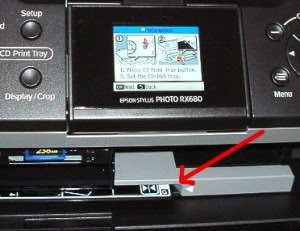


Slide the holder into the CD/DVD tray to left of the arro

Press OK to get the disk in place for printingPress OK to get the disk in place for printing.


Choose the photo you want to use as the label

Choose the photo you want to print as the label. In this example, the memory card (in red box) holds the image I want to print, but you can get the image from your computer as well. If the image needs any simple editing, use the Auto Correct function. You’ll be able to move the outline of the CD around the photo here, or make the image bigger or smaller to fit better. Remember that nothing will print across the center.

Press StartPress Start and the printing will begin.

Remove CD from the tray
When it finishes printing, remove the CD or DVD from the tray and you're finished!

How to use Printing Troubleshooter in Microsoft Windows XP

This post describes how to use the Printing Troubleshooter that is included in Microsoft Windows XP Help and Support Center. This post also provides a list of online printer support services that may help you solve your printing problem.

The Printing Troubleshooter includes step-by-step instructions for troubleshooting the following printing problems in Windows XP:

? You cannot install a local printer.
? Your photo printout quality is poor.
? Your document does not print at all.
? Some of the features that came with your printer do not work.
? Printed text or graphics is incomplete.
? Fonts are missing or do not look the same as they do on the screen.
? Printing is unusually slow.
? You cannot print from an MS-DOS-based program or from the MS-DOS command prompt.
? You receive the following error message:

The printer driver is not compatible with a policy enabled on your computer that blocks Windows NT 4.0 or Windows 2000 kernel-mode drivers.

How to start the Printing Troubleshooter

1. Click Start , and then click Help and Support.
2. Under Pick a Help Topic, click Fixing a problem.
3. In the left pane, click Printing problems.
4. In the right pane, click Printing Troubleshooter .

How to use the Printing Troubleshooter

1. Click the option that describes the problem that is occurring, and then click Next .
2. Repeat step 1 until your problem is resolved or you have reached the end of the troubleshooting path. Note that you can click Back at any time to repeat the last step, or click Start Over to start the Printing Troubleshooter again.

Followers