Problem:My sister was on Facebook and one of her friends messaged her with "look at this funny YouTube video of you" and a link only in numbers. It was a virus. She clicked it. It now let's the computer log on, but after 3 minutes it restarts. Then boots in safe mode. Then restarts and follows this loop continuously. Any suggestions?Thank you
Solution:
Resoltion for some of these Windows 7 Restart Loops. Please see the steps below for details:We will start by booting into Windows Recovery Environment using the same steps above. I will list them again here for completion's sake:1. Boot using the Windows 7 installation DVD2. Choose your language settings and hit "Next"3. Click on "Repair Your Computer" link at the bottom of the screen. This will launch Windows RE.NOTE: Do not click on “Install Now”4. Choose the OS to repair, and take note of the Drive Letter assigned to the operating System.5. You should see “Windows 7” and D:\ (the drive letter may be different)6. Click Next and you should see a list of the recovery tools7. Click on “Command Prompt”8. You will see “X:\Sources” in white on a black background, you can type commands hereOnce you have booted into WinRE please follow the steps below:1. Type "cd c:\users" at the command prompt.2. Type "dir /s /p", and look for the words "is too long". 3. If you don't see "is too long" on the first page, press a key to get the next page4. Look on the second page for "is too long".5. Continue to press a key to advance in pages until you find all the strings "is too long". (This may take quite a few pages to get to the end)NOTE: You may see more than 1 entry that has "is too long", please take a note of each entry as we will need the folder names in later steps.Once you have identified all the folders with "is too long" we will need to move them into a temp location.7. Type "move" followed by the path of the folder, then the name of the temporary location to move to:EXAMPLE: MOVE C:\USERS\BOB\DOCUMENTS\DOCUMENTS C:\TEMP8. Once all the invalid folders have been moved, repeat step 1 and 2 to verify that there are no other folders with "is too long"9. Once completed, restart the computer and you should be able to successfully boot into Vista.10. Once back into a working Vista, open "Computer" and navigate to C:\Users and open your username folder.11. Right click on each folder one by one and choose "Properties".12. Click on the Location tab and confirm that the path shown is correctly displaying the path for this folder.Example: The properties / location of C:\Users\BOB\Documents should have the same correct path listed on the location tab "C:\Users\BOB\Documents".13. If any folder's location is not correct, click on "Restore Defaults" and repeat14. Once all the folders have been corrected, please reboot the computer and retry the upgrade process again.
For More Info, Click here.
Problem:
M laptop suddenly lost its sound. though computer beeps can be heard (i.e. computer warning when ejecting a device)
but not music. or any other sound. so i figured its a software problem so i decided to install drivers from hp's support site.. still no go. so i then looked at the device manager and saw that the audio device doesn't exist. conexant high definition audio device isnt listed. so i tried updating my bios thinking that it would fix the problem. still nothing. so i used the recovery software in my computer and thats why im here. now searching around the forums its unfortunate that there are alot of people having the same issues and not having any of the solutions. i dont know what else to do. i think its past due for my laptop's warranty. but as a given fact that its a common issue with dv series from hp. i think they should do something about their product.
Solution:
To solve the
No Audio Output Device Installed in my laptop, I have tried the following:
1) GO BACK INTO "Device Manager" (dreaded, soul-crushing thing)
2) Go into "SYSTEM DEVICES"
3) Find "System speaker"
4) Uninstall it.
5) Go into hibernate/restart (I hibernated for a few minutes), cross your fingers and hope the dreaded red X is gone.
I hope it works for you
Problem: How do you restore a sony laptop back to factory settings?
Basically my laptop has a virus so keeps crashing when I go on some programmes so wondered how to restore it back to factory settings?
Solution: Follow the given steps for
Restore to Factory Settings From Recovery CD:
1. Put the Sony System Recovery CD into the CD drive and then turn off your computer. Wait at least 30 seconds before restarting.
2. Restart the computer and a "Vaio System Recovery Utility" window comes up. Click "Next."
3. Click "Yes" to confirm that you want to begin the system restore. Follow the instructions that you will be given in the window.
Restore to Factory Settings From Laptop
1. Close out all programs and open browser windows.
2. Click on "Start" on your computer's desktop.
3. Click on "Help and Support" when the Start menu opens up.
4. Select "Vaio Recovery Wizard" from the Help and Support menu. Confirm that you want to set the laptop back to factory settings and click "Next." The Sony laptop will begin the restoration process, which can take an hour or more.
5. Click "OK" when you finally receive a window that tells you the recovery process has been successfully completed
 Problem
:
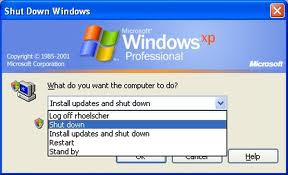
I bought a new laptop 6 mnths ago with windows 7 64 bit installed. worked fine up till 2 weeks ago. every time i shut down it stays on the shutdown screen till the battery goes flat. When i turn it back on it says windows has recovered from an unexpected shut down. any ideas coz im all out?
Solution:
Windows 7 laptop will not Shutdown issue could either be Software or Hardware related. Boot into Safe Mode and check if you can shut down properly.
Boot your computer in Safe mode.
If a problem doesn't reappear when you start in safe mode, you can eliminate the default settings and basic device drivers as possible causes.
Perform a hardware clean boot to determine if any hardware is posing this problem.
1. Go to start and type device manager.
2. Select device manager from the Control Panel list.
3. Right Click on Sound Card, Video Adapter, and Network Adapter one by one and click disable.
4. Reboot the computer. If the problem is fixed then you can enable the hardware devices one by one to find the exact device that caused the problem.
After you found the device that is causing the problem, installing the device’s latest driver should fix it unless it’s a hardware issue.
 Problem
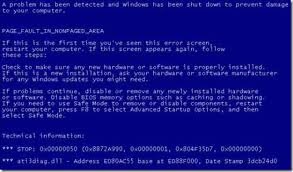
: Before I got this blue screen everything was fine, but suddenly Mozilla started to freeze up and it wouldn't respond. So I had to restart my pc but when I did it got that blue screen with error 0xc0000006. I tried the startup repair but that doesn't work, then I tried restoring to an earlier time, that didn't work either. This is my 4th HD, I'm getting pissed at these things for not working properly, what would cause this...0xc6 error suddenly? Is here another way to repair it? I don't want to have buy another HD , this one cost me $150 so...any help would be appreciated, also I'm on my iPod at the moment.
Solution:
It seems that there is some driver issue. Also
Windows 7 Blue screens (BSOD’s) are mostly due to hardware and sometimes due to incompatible software. In a lot of cases it is a corrupted driver or a driver conflict. The most common causes of blue screens are overheating, faulty RAM, and video card problem.
There is a setting that will prevent the system restarting immediately after a crash like that, and so allow you to see the BSOD. Refer to the steps below -
1. Click Start and then click Control Panel
2. Select the ‘view by’ option as small icons.
3. Now select the option of System and select advanced system settings, (on the left).
Accept the "Windows will need your permission to continue" if it appears
4. Now click the Settings button under "Startup and recovery".
5. In the new window, remove the tick for "Automatically restart" under System failure.
This will at least let you see the BSOD message when the system restarts and will allow you to write down the full message. You will need to turn off the computer manually afterwards.
Try to note the exact error message you are getting and notify us about it to assist you better.
Also I would suggest you to connect the minimum required hardware like a single RAM stick, monitor, keyboard, etc and then try starting the computer and check.
For info click
here.
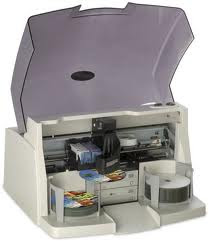
A printer driver is a necessary piece of software that must be installed in a computer for the printer to function properly. The printer driver converts information into a data stream that can be read by the printer to produce the printed page. However, printer drivers can become corrupted or outdated after an update to the Windows operating system or a program. If the printer driver is not working, then the printer will also malfunction. You can use the Add Printer Driver Wizard in Windows to replace the malfunctioning printer driver.
Instructions
Click "Start" then "Control Panel" and select "Hardware and Sound" from the list. Click "Printers" or "Devices and Printers." A list of printers will be displayed.
Right-click the printer with the malfunctioning driver, then select "Printer Properties" from the pop-up list. If prompted by the system, enter the administrator password in the appropriate field. The "Printer Properties" window will open.
Click the "Advanced" tab, then click the "New Driver" button. The Add Printer Driver Wizard window will open. Click the "Next" button.
Click the "Have Disk" button if you have the new driver on a CD or DVD already inserted in the disk drive of your computer. The wizard will automatically locate the printer driver on the disc and install it. Click the "Windows Update" button if you do not have the new driver on a disc. The system will download all driver updates and automatically install the driver for your printer.
Read more: http://goo.gl/m18QK
 Problem
:
While I was playing Warcraft 3, the screen usually lag suddenly. Once this happens, I need to quicky quit the game to prevent from freezing. When I quiited the game, under below the notification, it says that your display driver stopped working and restored successfully. So please help me from happening this! Thanks.
Solution:
If you have installed an unstable beta video driver version, you will need to install the correct video driver. You can download the driver form your hardware manufacturer’s website. If you see that your driver files got deleted or corrupted, you will need to update your antivirus program and fix all the malware issues in your computer as the issues are mainly caused due to the malware threats. Then you can install video drivers in your computer; make sure that you install hardware and Windows compatible drivers.
Hopefully, you get solution of Display driver stopped working


